Author: aabdelfattah

  • 5 Things Egyptians should know about the Grand Ethiopian Renaissance Dam (GERD)

    5 .  What is Grand Ethiopian Renissance Dam (GERD) ??

    GERD is a dam built by salini inpreglio construction company for the Ethiopian government on the Blue Nile River . I quote from the company’s page:

    “At the end of the works, the Grand Ethiopian Renaissance Dam will be the largest dam in Africa: 1,800 m long, 170 m high and with a total volume of 70 billion m³.The power stations are positioned on the right and left banks of the river and comprise 16 Francis turbines with a total installed power of 6,000 MW and estimated production of 15,000 GWh per year.”

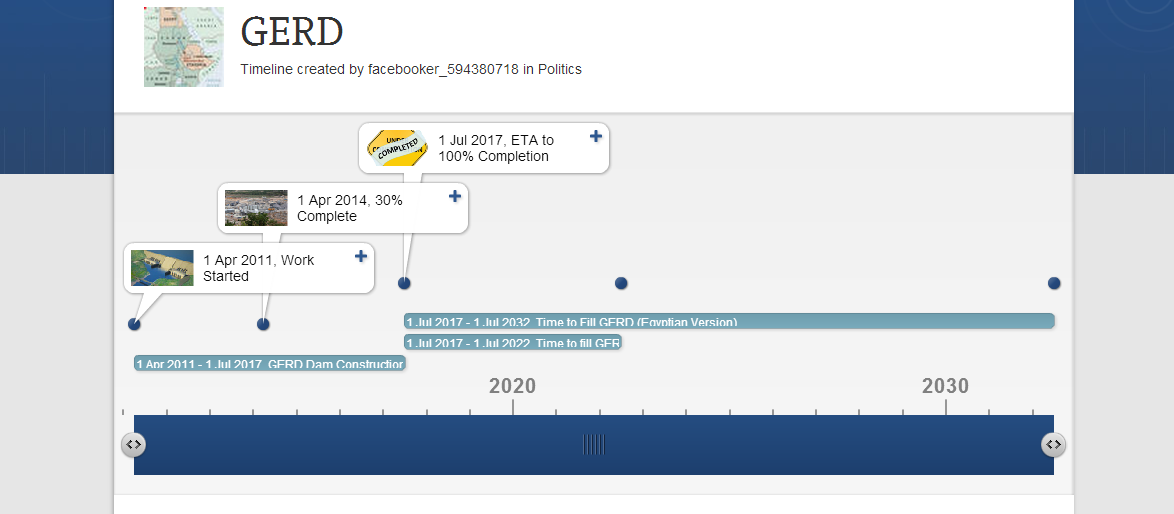
    Work started in April 2011 and is expected to complete by July 2017.


    4. Hmm ….Where is that ??


    Well .. As we studied in schools (and probably don’t remember now),  there are two main sources for the Nile : the White Nile and the Blue Nile , The GERD is planned to be built on the course of the Blue Nile near the borders with Sudan.

    The Blue Nile is vital to the livelihood of Egypt.it contributes more than half of the Nile’s streamflow.


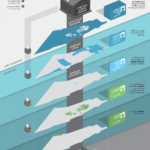
    River Nile Map ..  Google map grd


    3. How much work is completed till now ??


    According to Chief Executive Officer (CEO) of the Ethiopian Electric Power Engineer Azeb Worku in April 2014 :
    “The construction of the dam is progression well without any problem with a great support of the people and government of Ethiopian people. The dam is now over 30% complete. “


    2. How do Ethiopians think of Egypt’s political stance and Egyptians ??

    Well… they clearly don’t like us
    eth comment 7 eth comment 6 eth comment 5 eth comment 4 eth comment 3 eth comment 1


    1. Ok… I skipped all the bla bla to here…How will GERD affect our lives in Egypt ??


    First, go and check this animated timeline that I prepared to describe the problem: http://www.timetoast.com/timelines/gerd


    GERD Timeline

    Then, let’s do some simple Math:

    GERD Capacity =70 billion m³

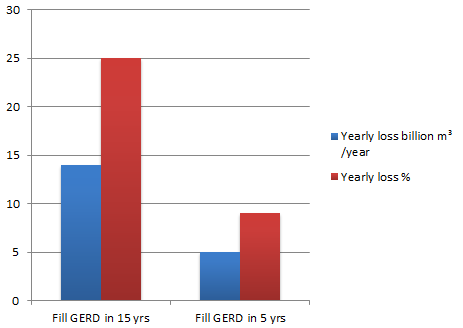
    Ethiopians want to fill GERD in 5 years (the sooner they fill, the sooner electricity is generated) 70/5 =  14 billion m³ /year

    Egyptian experts suggests that the dam to be filled in 15 years at least 70/15 =  ~5 billion m³ /year

    Egypt’s yearly average annual Nile flow according to 1959 treaty = 55.5 billion m³ /year

    Effect of filling GERD in 5 years = 14/55.5 = 25% yearly loss for Egypt !

    Effect of filling GERD in 15 years = 5/55.5 = 9% yearly loss for Egypt !


    gerd loss

    According to Egyptian experts  that would cause 2,000,000 farmers to lose their income during the period of filling the reservoir, also production of Electricity from the High Dam will be reduced by 20% – 40% !


    References:

    http://en.wikipedia.org/wiki/Grand_Ethiopian_Renaissance_Dam

    http://www.internationalrivers.org/resources/the-grand-ethiopian-renaissance-dam-fact-sheet-8213

    http://www.aljazeera.com/programmes/insidestory/2013/05/201353081623734349.html

    http://www.aljazeera.net/news/pages/237b864d-0553-416a-b507-c8374073a607

    http://www.shorouknews.com/news/view.aspx?cdate=27042014&id=15304d92-b50d-4daf-9ff6-29638ae95dd5

    http://www.shorouknews.com/mobile/news/view.aspx?cdate=29042014&id=d4e31ad2-e47d-4379-ab2f-3933b040f017


  • al-haitham is open source

    I have benefited a lot from the open source community and it’s time to give back, I uploaded the source code of my graduation project which proposes a real time computer vision system  implemented on FPGA to translate human gestures into computer commands 

     First I would like to thank my graduation project team members:

       Ahmed Hafez Khalil

       Asmaa Omar

       Amani Mohamed Sedek

       Mohamed Ismail Khalil

       Mohamed Kamal Ali

       Mohamed Maged Abdel Majed


    and here are the links to my grad project github repos: 

    Hardware repo : https://github.com/aabdelfattah/alhaitham-hardware

    Software repo : https://github.com/aabdelfattah/alhaitham-software

    Have a look at thd brochure I designed for the EED competition 2012 which we won its 1st place 🙂

    project-brochure-1

  • Cross-compiling a Pie ! The Raspberry Pi Ultimate Guide

    Hi,

    During the last few weeks I was interested in cross-compiling for the RPi. I have gone through many tutorials and blog posts to get the task done , so I tried to compile as many information as I can in this guide as a future reference and to help everybody else [The post is long, use CTRL+F for navigation].

    Topics:

    1. Getting started , setting up the cross-compilation toolchain.
    2. Hello World! Building an RPi C application using shell.
    3. Hello World 2! Building an RPi C application using eclipse.
    4. Remote debugging the RPi with gdb on eclipse + RSE plugin.
    5. Updating your kernel. RPi Kernel cross-compilation.
    6. Extra: How does the bootloader work ?? 


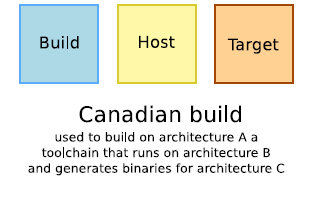
    Let’s get started with cross-compiling a Pie , there are usually 2 configurations : 

    • either to build the tool chain yourself on your host machine;
    • or to get a pre-compiled toolchain (the Canadian cross).

    pi12

    pi13

    [images from free-electrons embedded training slides]


    For this guide I will be using pre-built linaro toolchain(the second way),still I encourage you to try to build the toolchain yourself  for the sake of knowledge using one of those excellent tutorials :  A and B

    Now, let’s download the Linaro gcc toolchain [source]


    $ sudo apt-get install git rsync cmake ia32-libs

    $ mkdir raspberrypi

    $ cd raspberrypi

    $ git clone git://github.com/raspberrypi/tools.git

    Add the cross-compile to your $PATH

    $ export PATH=$PATH:$HOME/raspberrypi/tools/arm-bcm2708/gcc-linaro-arm-linux-gnueabihf-raspbian/bin

    And finally append the very same line to the end of your ~/.bashrc file to make the change permnant

    That’s it, now try

    $ arm-linux-gnueabihf-gcc -v 

    should give you something like this

    Using built-in specs.
    COLLECT_GCC=arm-linux-gnueabihf-gcc
    COLLECT_LTO_WRAPPER=/home/ahmed/raspberrypi/tools/arm-bcm2708/gcc-linaro-arm-linux-gnueabihf-raspbian/bin/../libexec/gcc/arm-linux-gnueabihf/4.8.3/lto-wrapper
    Target: arm-linux-gnueabihf
    Configured with: /cbuild/slaves/oorts/crosstool-ng/builds/arm-linux-gnueabihf-raspbian-linux/.build/src/gcc-linaro-4.8-2014.01/configure --build=i686-build_pc-linux-gnu --host=i686-build_pc-linux-gnu --target=arm-linux-gnueabihf --prefix=/cbuild/slaves/oorts/crosstool-ng/builds/arm-linux-gnueabihf-raspbian-linux/install --with-sysroot=/cbuild/slaves/oorts/crosstool-ng/builds/arm-linux-gnueabihf-raspbian-linux/install/arm-linux-gnueabihf/libc --enable-languages=c,c++,fortran --disable-multilib --enable-multiarch --with-arch=armv6 --with-tune=arm1176jz-s --with-fpu=vfp --with-float=hard --with-pkgversion='crosstool-NG linaro-1.13.1-4.8-2014.01 - Linaro GCC 2013.11' --with-bugurl=https://bugs.launchpad.net/gcc-linaro --enable-__cxa_atexit --enable-libmudflap --enable-libgomp --enable-libssp --with-gmp=/cbuild/slaves/oorts/crosstool-ng/builds/arm-linux-gnueabihf-raspbian-linux/.build/arm-linux-gnueabihf/build/static --with-mpfr=/cbuild/slaves/oorts/crosstool-ng/builds/arm-linux-gnueabihf-raspbian-linux/.build/arm-linux-gnueabihf/build/static --with-mpc=/cbuild/slaves/oorts/crosstool-ng/builds/arm-linux-gnueabihf-raspbian-linux/.build/arm-linux-gnueabihf/build/static --with-isl=/cbuild/slaves/oorts/crosstool-ng/builds/arm-linux-gnueabihf-raspbian-linux/.build/arm-linux-gnueabihf/build/static --with-cloog=/cbuild/slaves/oorts/crosstool-ng/builds/arm-linux-gnueabihf-raspbian-linux/.build/arm-linux-gnueabihf/build/static --with-libelf=/cbuild/slaves/oorts/crosstool-ng/builds/arm-linux-gnueabihf-raspbian-linux/.build/arm-linux-gnueabihf/build/static --enable-threads=posix --disable-libstdcxx-pch --enable-linker-build-id --enable-plugin --enable-gold --with-local-prefix=/cbuild/slaves/oorts/crosstool-ng/builds/arm-linux-gnueabihf-raspbian-linux/install/arm-linux-gnueabihf/libc --enable-c99 --enable-long-long --with-float=hard
    Thread model: posix
    gcc version 4.8.3 20140106 (prerelease) (crosstool-NG linaro-1.13.1-4.8-2014.01 - Linaro GCC 2013.11)

    Now let’s build a simple application , use your favorite editor to write helloworld.c

    #include <stdio.h>
    int main()
    {
       printf("Hello world \n");
       return 0;
    }

    and compile it using the usual gcc way

    $ arm-linux-gnueabihf-gcc -o helloworld helloworld.c

    Copy this to your Pi with a USB flash memory or on the sd card or whatever suits you, launch it and it should work !

    pi@raspberrypi:~$ ./helloworld

    Hello world

    pi@raspberrypi:~$

    Now, Let’s add our toolchain to eclipse : 

    •  install C/C++ cross-compiler support plugin;

    pi14

    • from the menu File >> New Project >> C-Project >> Cross-Compile project , input the name of your project and hit next;
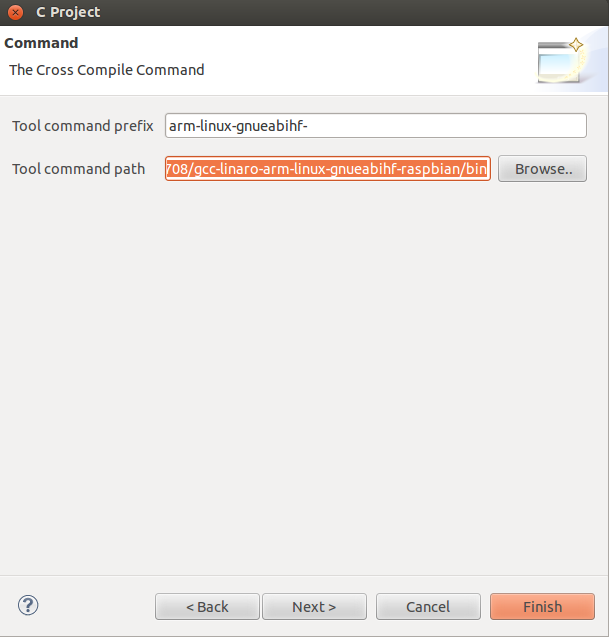
    • enter arm-linux-gnueabihf- as Tool command prefix and ~/raspberrypi/tools/arm-bcm2708/gcc-linaro-arm-linux-gnueabihf-raspbian/bin as the tool command path , hit next and finish;

    pi16

    • Congratulations 🙂 !!

    It’s important to be able to debug your code online on the RPi, so we are going to use a nice plugin called RSE to do this [source]:

    You may use this source code HelloDebug.c if you wish:

    #include <stdio.h>
    
    int main()
    {
    	int i = 0;
    	printf("Hello world \n");
    	while (i < 1000)
    	{
    		printf("%d \n",i);
    		i++;
    	}
    	return 0;
    
    }
    • install the RSE plugin;

    pi15

    • create a new project with the above source, build it in debug mode (not release);
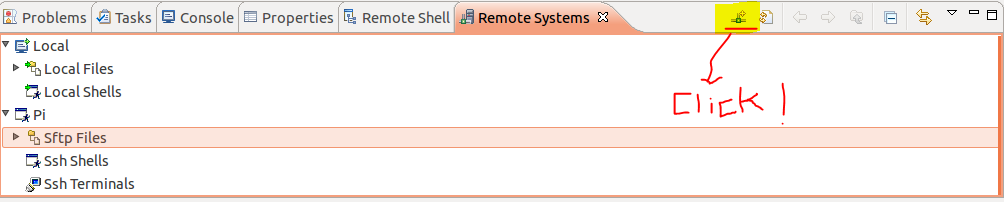
    • add a new connection to your RPi from the Remote Systems window (if you can’t see it , add it from Window >> Show View >> Others >> Remote Systems) , then hit the tiny button to add an ssh connection to your pi;

    pi19

    • copy the elf executable to the pi using RSE (right click to copy it and paste it on the dir you wish from the stfp menu);

    pi20

    • make sure to chmod+x the execultable;
    • now we will add a new debug configuration , right click on the project and select Debug as >> Debug Configurations  and add a new C/C++ Remote Application configuration;
    • pi17
    • ensure that in Debugger >> Main tab the debugger is arm-linux-gnueabihf-gdb
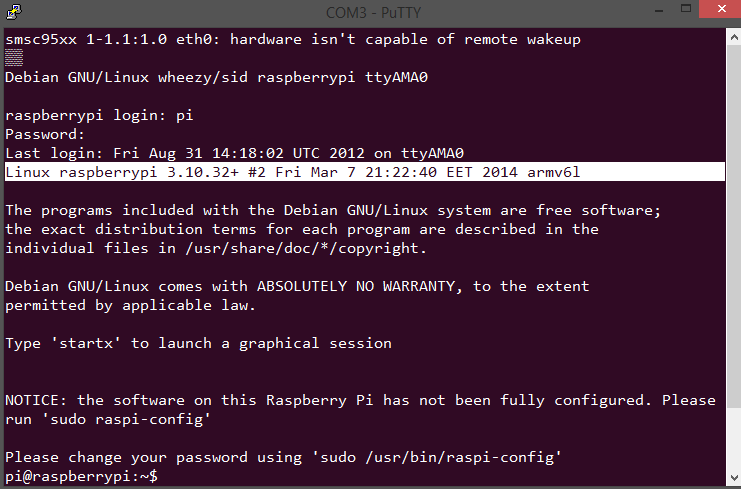
    • login to your pi using ssh to launch the gdbserver $sudo gdbserver your-linux-pc-ip:any-free-port  HelloDebug

    pi18

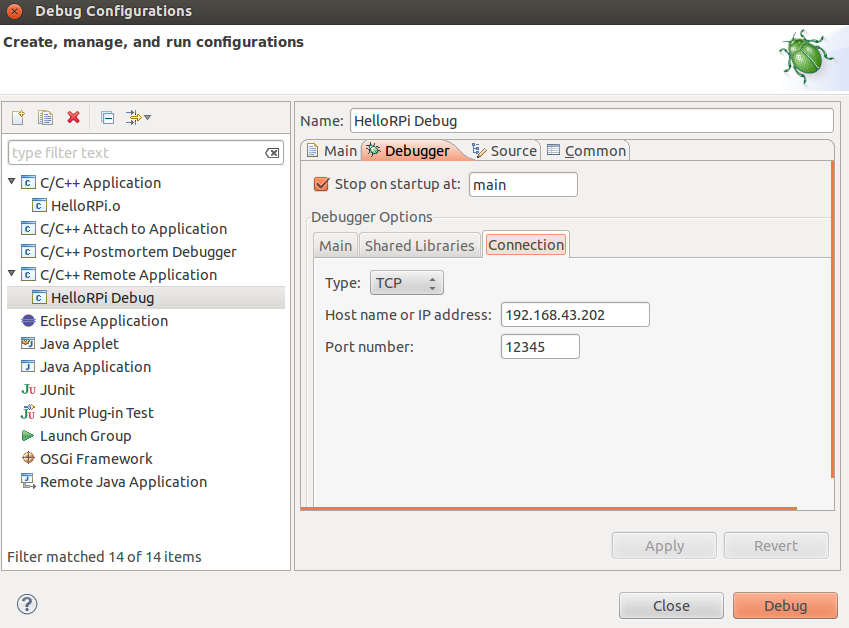
    • back to eclipse , ensure that you have the right connection parameters in Debugger >> Connection tab where you should pick the RPi IP and the port number you previously picked.
    • That’s it !! click Debug and enjoy debugging 🙂

    pi11

    Now , there is an excellent tutorial for compiling the kernel [this is not my work,  I am just copying it here for future reference because it’s short and to the point ]also elinux wiki has a good compilation:

    Create our working directory:

    $ mkdir -p raspberrypi/kernel
    $ cd raspberrypi/kernel

    Before starting our work, install the necessary tools and source code of Raspberry Pi linux:

    $ git clone https://github.com/raspberrypi/tools.git
    $ git clone https://github.com/raspberrypi/linux.git

    Prepare the .config file from pre-packaged config, bcmrpi_cutdown_defconfig:

    $ cd linux
    $ make ARCH=arm CROSS_COMPILE=/usr/bin/arm-linux-gnueabi- bcmrpi_cutdown_defconfig

    Build kernel:

    $ make ARCH=arm CROSS_COMPILE=/usr/bin/arm-linux-gnueabi-
    $ mkdir ../modules
    $ make modules_install ARCH=arm CROSS_COMPILE=/usr/bin/arm-linux-gnueabi- INSTALL_MOD_PATH=../modules/
    $ cd ../tools/mkimage/
    $ ./imagetool-uncompressed.py ../../linux/arch/arm/boot/Image

    Now insert a Raspbian installed SD Card, and run the command:

    $ sudo rm /media/<boot-partition>/kernel.img
    $ sudo mv kernel.img /media/<boot-partition>/
    $ sudo rm -rf /media/<rootfs-partition>/lib/modules/
    $ sudo rm -rf /media/<rootfs-partition>/lib/firmware/
    $ cd ../../modules/
    $ sudo cp -a lib/modules/ /media/<rootfs-partition>/lib/
    $ sudo cp -a lib/firmware/ /media/<rootfs-partition>/lib/
    $ sync

    Now you can remove the SD Card and use it to boot Raspberry Pi with the new kernel.

    pi8

    Finally , here is a nice answer on stackexchange about How the Pi boots and another nice reference :

    1. When the Raspberry Pi is first turned on, the ARM core is off, and the GPU core is on. At this point the SDRAM is disabled.
    2. The GPU starts executing the first stage bootloader, which is stored in ROM on the SoC. The first stage bootloader reads the SD card, and loads the second stage bootloader (bootcode.bin) into the L2 cache, and runs it.
    3. bootcode.bin enables SDRAM, and reads the third stage bootloader (loader.bin) from the SD card into RAM, and runs it.
    4. loader.bin reads the GPU firmware (start.elf).
    5. start.elf reads config.txtcmdline.txt and kernel.img

    loader.bin doesn’t do much. It can handle .elf files, and so is needed to load start.elf at the top of memory (ARM uses SDRAM from address zero). There is a plan to add elf loading support to bootcode.bin, which would make loader.bin unnecessary, but it’s a low priority (I guess it might save you 100ms on boot).

  • How did I turn my old crappy Pentium 4 PC into a nice home network data cloud ?

    Do you have an old PC lying somewhere with a lot of dust all over it ? Do you want a local data cloud to sync all your files across your laptop, tablet, PCs ? 

    Then, I guess this tutorial will come in handy.

    – First step is to dust your machine off , when I first plugged in my machine it didn’t even boot except when I really cleaned it well but sadly one RAM stick died because of dust . Now I am stuck with only 256 MB of RAM on my P4 2.8 GHZ machine but that didn’t set me back !
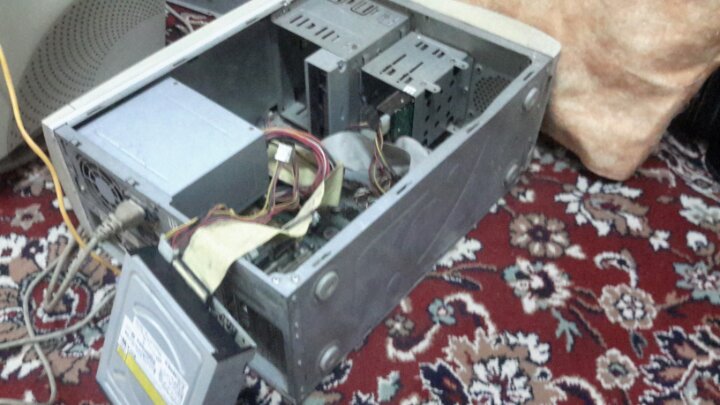
    image

    Download, burn and install your favorite Linux distro  as ownclowd supports many distros, but note that this tutorial is debian-based, I am using debian wheezy 7.4 standard(no desktop)

    – Remember that we are dealing with a server now:

    • It’s important that when the machine restarts because of a power cut for example; it should always boot to your server OS without any external intervention because we will only use ssh and won’t connect any IO devices to the server machine (keyboard,mouse,monitor…etc.)  , also make sure to configure your BIOS settings (boot device, order..etc.) .
    • To save power disconnect any unneeded peripherals(for ex: I disconnected my Nvidia VGA card and DVD ROM ) , not sure if it will do much saving for this old machine but better than nothing.

    – Set a static IP to your local server , for a Debian server you can follow the following instructions from elinux which were originally written for the raspberry pi but the will work perfectly here:

    You only need to modify the file /etc/network/interfaces

    Before you do, backup the current version of the interfaces file, if there is already one present:

     pi@raspberry:sudo cp /etc/network/interfaces /etc/network/interfaces.sav

    You can edit the file with any text editor such as vi or vim.

    We need root privileges, so we use sudo:

     pi@raspberry:sudo vi /etc/network/interfaces

    In the interfaces file look for a line such as:

     iface eth0 inet dhcp

    This is to enable the DHCP client. You do not want this to work any more.

    Put a hash at the beginning of the line to disable it or delete it:

     #iface eth0 inet dhcp

    In the file you must insert the following lines:

     # The loopback interface
     auto lo
     iface lo inet loopback
     auto eth0
     iface eth0 inet static
     #your static IP
     address 192.168.1.118  
     #your gateway IP
     gateway 192.168.1.1
     netmask 255.255.255.0
     #your network address "family"
     network 192.168.1.0
     broadcast 192.168.1.255

    Only the address and netmask data are strictly required.

    If for example your LAN is configured to have IP adresses in the range x.x.x.1 to x.x.x.255, you will put x.x.x.0 in the network line.

    “address” is the IP you want the RPi will assume (in the proper range, as described above). pay attention not to use an IP already used by another device in your LAN or that can be assigned to a device by your router by DHCP (set the DHCP range of the router wisely in order to avoid potential overlaps).

    “netmask” will “always” be 255.255.255.0

    gateway is usually x.x.x.1 (your router IP or the one given by your ISP)

    You now need to restart the network:

     pi@raspberry:sudo /etc/init.d/networking restart

    – Install ownclowd using the following techcint great tutorial , I recommend you to fully read it to understand what you are doing but here is a cheat sheet of the commands 

    # apt-get install apache2 apache2-doc apache2-utils mysql-server mysql-client php5 php5-mysql php5-gd
    # mysql -u root -p
    mysql> create database cloud ; 
    Query OK, 1 row affected (0.00 sec)
    mysql> grant all on cloud.* to yourname@localhost identified by 'my_password'; 
    Query OK, 0 rows affected (0.00 sec)
    # wget http://download.owncloud.org/community/owncloud-6.0.0a.tar.bz2
    # cp owncloud-6.0.0a.tar.bz2 /var/www/		
    # tar -jxvf owncloud-6.0.0a.tar.bz2
    # rm -rf owncloud-6.0.0a.tar.bz2
    # chmod -R 777 owncloud/
    # a2enmod rewrite
    # a2enmod headers
    # nano /etc/apache2/sites-available/default

    Find

    AllowOverride None

    Change this to:

    AllowOverride All
    # service apache2 restart

    VOILA ! You should be up and running now using :  http://your-ip-address/owncloud

    Now , you should create the admin user  and remember to enter the mysql user and database to get it ready .

    Don’t go yet as there is a last step,   php is set to have a max upload of 2 MBs which is useless so you have to configure it a bit :

    Note: The order of the following steps is important! If you swap steps described below, the settings may fail.

    Go to the admin section in the ownCloud-WebUI and do the following:

    • Under “File handling” set the Maximum upload size to the desired value (e.g. 16GB)
    • Click the “save”-Button

    Open the php.ini – file

    • Under Debian or SUSE and their derivatives this file lies at /etc/php5/apache2/php.ini
    • On Windows, you can find this file within C:/Program Files (x86)/PHP/PHP.ini

    Do the following:

    • Set the following three parameters inside th php.ini to the same value as chosen inside the admin-section one step before:
    • upload_max_filesize = 16G (e.g., to stay consistent with the example value above)
    • post_max_size = 16G (e.g., to stay consistent with the example value above)
    • output_buffering = 16384 (e.g., to stay consistent with the example value above)

    whereas the “output_buffering” has to be given in MegaBytes but as a plain figure (without size-units as ‘M’ or ‘G’)

    These client configurations have been proven by testing maximum file sizes of 16 GB:

    • Linux 32 Bit: Ubuntu, Firefox => 16GB
    • Windows 8 64 Bit: Google Chrome => 8GB

    Here are some screenshots of my local cloud !
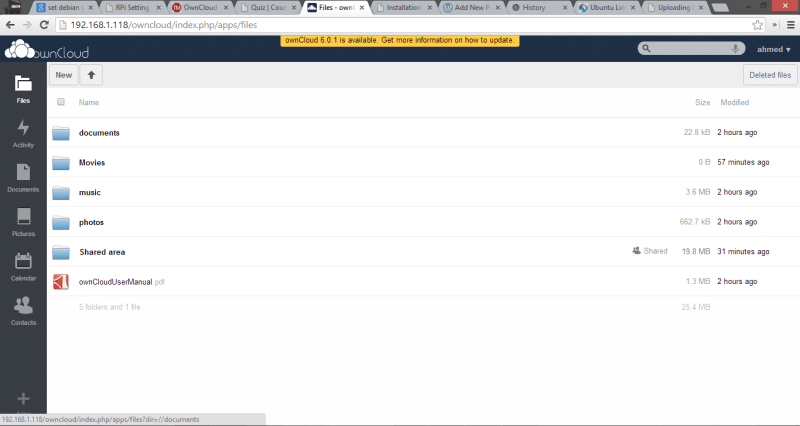
    owncloud2

    Capture03031

  • A Linux bash script to download all pdf files from a page

    Are you trying to download multiple files from a webpage and bored from clicking and clicking ??

    I needed to download like a 100 PDF from a single web page , so I started to look for a bash script that automates the process and found this interesting article by Guillermo Garron that combines several useful programs into a nice script to download all links from a page using lynx command line web browser and wget downloader.

    First , install the the browser

    $ sudo apt-get install lynx

    Lynx has a nice feature that allows you to grab all links from a page

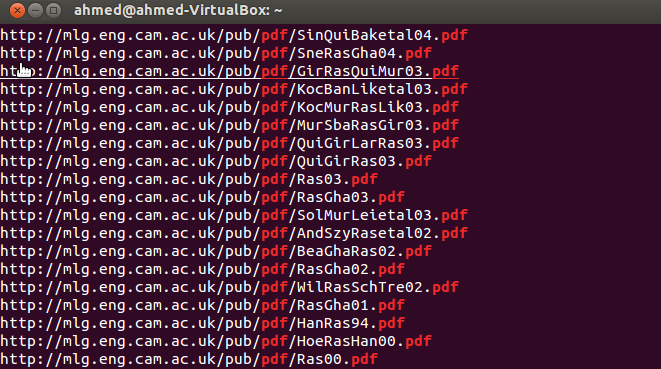
    $ lynx --dump http://mlg.eng.cam.ac.uk/pub/ >> ~/links.txt

    The output will be like this 

    Image

    So we need to filter out the first numbering column and all non pdf links for the output to be nice and readable by wget

    $ lynx --dump //http://mlg.eng.cam.ac.uk/pub/  | awk '/http/{print $2}' | grep pdf  >> ~/links.txt

    Resulting in a clean input to wget 

    Image

    and the last step is to pass this file into wget to download all the pdfs

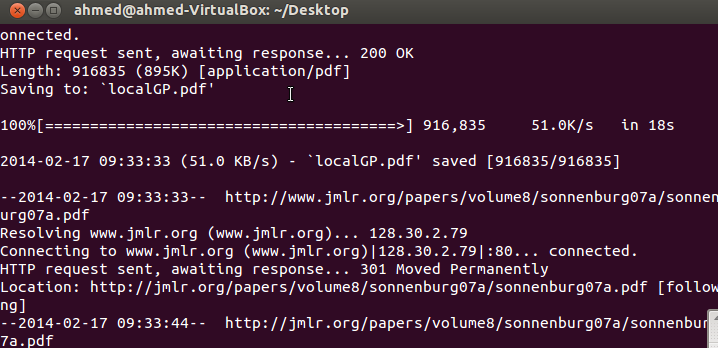
    $ for i in $( cat ~/links.txt ); do wget $i; done

     voilà ! you get all the files downloaded 

    Image

  • Quick notes about SRTP (Secure Real-time protocol)

    Here are some quick notes that I took while studying the SRTP from the standard document , they are not meant to be complete but rather a quick overview of the protocol.

    SRTP: Secure Real-time Transport Protocol
    is a profile of Real-time Transport protocol, a stream-cipher
    provides confidentiality, message authentication, message integrity, and replay attack protection.
    other goals are to have a small footprint, low bandwidth cost
    additional features to simplify key management is introduction of a single MK(Master Key) ; all security services derive their keys from the MK using a key derivation function
    note: reading the standard
    SRTP provides a framework for encryption and message authentication of RTP and RTCP streams(Section 3). SRTP defines a set of default cryptographic transforms (Sections 4 and 5),and it allows new transforms to be introduced in the future (Section 6). With appropriate key management (Sections 7 and 8), SRTP is secure (Sections 9) for unicast and multicast RTP applications (Section 11).
    SRTP Framework
    SRTP is defined as a profile of the RTP protocol; an extension of the Audio/Video profile. It can be visualized residing between RTP application and transport layer.
    SRTCP to RTCP resembles SRTP to RTP; providing same services, but with mandatory message authentication.
    1. SRTP Packet
    Payload size doesn’t change after encryption.
    MKI [Optional] (Master Key Identifier)
         – identifies the master key from which session keys are derived.
         – shall not identify the cryptographic context.
    Authentication tag [Recommended]
        – carries message authentication data
        – encryption shall be applied before authentication
       
    
            0                   1                   2                   3
          0 1 2 3 4 5 6 7 8 9 0 1 2 3 4 5 6 7 8 9 0 1 2 3 4 5 6 7 8 9 0 1
         +-+-+-+-+-+-+-+-+-+-+-+-+-+-+-+-+-+-+-+-+-+-+-+-+-+-+-+-+-+-+-+-+<+
         |V=2|P|X|  CC   |M|     PT      |       sequence number         | |
         +-+-+-+-+-+-+-+-+-+-+-+-+-+-+-+-+-+-+-+-+-+-+-+-+-+-+-+-+-+-+-+-+ |
         |                           timestamp                           | |
         +-+-+-+-+-+-+-+-+-+-+-+-+-+-+-+-+-+-+-+-+-+-+-+-+-+-+-+-+-+-+-+-+ |
         |           synchronization source (SSRC) identifier            | |
         +=+=+=+=+=+=+=+=+=+=+=+=+=+=+=+=+=+=+=+=+=+=+=+=+=+=+=+=+=+=+=+=+ |
         |            contributing source (CSRC) identifiers             | |
         |                               ....                            | |
         +-+-+-+-+-+-+-+-+-+-+-+-+-+-+-+-+-+-+-+-+-+-+-+-+-+-+-+-+-+-+-+-+ |
         |                   RTP extension (OPTIONAL)                    | |
       +>+-+-+-+-+-+-+-+-+-+-+-+-+-+-+-+-+-+-+-+-+-+-+-+-+-+-+-+-+-+-+-+-+ |
       | |                          payload  ...                         | |
       | |                               +-------------------------------+ |
       | |                               | RTP padding   | RTP pad count | |
       +>+-+-+-+-+-+-+-+-+-+-+-+-+-+-+-+-+-+-+-+-+-+-+-+-+-+-+-+-+-+-+-+-+<+
       | ~                     SRTP MKI (OPTIONAL)                       ~ |
       | +-+-+-+-+-+-+-+-+-+-+-+-+-+-+-+-+-+-+-+-+-+-+-+-+-+-+-+-+-+-+-+-+ |
       | :                 authentication tag (RECOMMENDED)              : |
       | +-+-+-+-+-+-+-+-+-+-+-+-+-+-+-+-+-+-+-+-+-+-+-+-+-+-+-+-+-+-+-+-+ |
       |                                                                   |
       +- Encrypted Portion*                      Authenticated Portion ---+
    2. SRTP Cryptographic context
         is the cryptographic state information required to be saved by the sender and the receiver (e.g: keys, encryption algorithms used), session keys are derived form master keys and used directly in the cryptographic transform
        the cryptographic context parameters can be transform-independent(independent of the particular encryption or authentication transform used), or transform-dependent
        a cryptographic context of a packet is defined by the triplet context identifier = < SSRC, network address, port number>
    3. SRTP Packet Processing
        @sender
        – determine the cryptographic context to use.
         determine index of packet (from ROC, RTP packet sequence number, cryptographic context sequence number)
        – determine master key and master salt , derive session keys and session salt from them.
         – encrypt the payload with the algorithm defined by the cryptographic context,
        – append the MKI if MKI indicator is set to 1
        – compute the authentication tag defined by the cryptographic context
        @receiver
        – find out the cryptographic context to use.
        – get packet index
        – if MKI indicator is set to 1 get MKI from packet else use previous index, determine master key and master salt , session keys and session salt.
        – authenticate
        – decrypt
        – update ROC and cryptographic context sequence number.
    4. Predefined Algorithms for SRTP
        
        for encryption
       The encryption transforms defined in SRTP map the SRTP packet index
       and secret key into a pseudo-random keystream segment.  Each
       keystream segment encrypts a single RTP packet.  The process of
       encrypting a packet consists of generating the keystream segment
       corresponding to the packet, and then bitwise exclusive-oring that
       keystream segment onto the payload of the RTP packet to produce the
       Encrypted Portion of the SRTP packet.  In case the payload size is
       not an integer multiple of n_b bits, the excess (least significant)
       bits of the keystream are simply discarded.  Decryption is done the
       same way, but swapping the roles of the plaintext and ciphertext.
        – AES-CTR
        – AES-f8
     
        for authentication
       We describe the process of computing authentication tags as follows.
       The sender computes the tag of M and appends it to the packet.  The
       SRTP receiver verifies a message/authentication tag pair by computing
       a new authentication tag over M using the selected algorithm and key,
       and then compares it to the tag associated with the received message.
       If the two tags are equal, then the message/tag pair is valid;
       otherwise, it is invalid and the error audit message "AUTHENTICATION
       FAILURE" MUST be returned.
        – HMAC-SHA1    
    5- An Example of an encryption process using AES-CTR
       Mainly, the encryption process is as simple as XORing the payload  
       with a keystream segment .
       The keystream segment SHALL be the concatenation of the 128-bit output
       blocks of the AES cipher in the encrypt direction, using key k = k_e,
       in which the block indices are in increasing order.  Symbolically,
       each keystream segment looks like
    
          E(k, IV) || E(k, IV + 1 mod 2^128) || E(k, IV + 2 mod 2^128) ...
    
       where the 128-bit integer value IV SHALL be defined by the SSRC, the
       SRTP packet index i, and the SRTP session salting key k_s, as below.
    
          IV = (k_s * 2^16) XOR (SSRC * 2^64) XOR (i * 2^16)
  • 12 Angry Men

    12angry-1024x707

    الحقيقة أنا مش من هواة الأفلام الأبيض و الأسود , لما صديقى نصحنى بالفيلم ما كنتش متحمس أوى ليه و لكن تحمست لما عرفت أن الفيلم بالكامل متصور داخل غرفة وحيدة و دى فكرة جديدة بالنسبالى ..   الأفكار الجديدة دايما بتجذبنى بسهولة.. المفاجأة أن الفيلم كان شديد الابداع و العبقرية لدرجة أنه  .أسرنى من أول لحظة لأخر دقيقة فى الفيلم فى حالة 

    12-angry-men-pic-3

    قصة الفيلم

    بيدور الفيلم حوالين قرار مرتبط بحياة انسان .. قضية اجتمعت فيها الأدلة ضد صعلوك من أحد الأحياء الفقيرة  متهم بقتل أبوه .. القانون الأمريكى بينص على أن هيئة من المحلفين بتتشكل من 12 فرد بيكون دورها أنها تحدد  اذا كان المتهم مذنب أو غير مذنب [1] و بعد كدة على القاضى أنه يأخذ برأيهم أو لا يأخذ و له كامل الصلاحيات .. و عشان الهيئة تاخد قرار ادانة لازم يكون التصويت بنسبة مئة فى
    .المئة

    بيبدأ الفيلم بتفويض القاضى لهيئة المحلفين بالبحث فى ملف القضية و اتخاذ قرار مناسب فى قضية تبدو للوهلة الأولى محسومة … شاب شكله بلطجى اتخانق مع والده و قتله… بيجتمع ال 12 شخص فى غرفة واحدة و بسبب الصورة الذهنية المسبقة عن المتهم صاحب الأصول المتواضعة اتجاه التصويت بيتجه بأغلبية ساحقة لإدانة المتهم .. 11 صوت لإدانة المتهم الا صوت واحد لهنرى فوندا .. بيواجه بسخرية و نقد شديدين لأنه وقف أدام الأغلبية الساحقة لأ و كمان ماعندوش دليل واحد أن المتهم برىء .

     .هو صرح ببساطة أنه صوت بغير مذنب لأنه مش متأكد أنه مذنب

    الجدلية إلى أثارها فوندا أنه لا يمكن تقرير مصير انسان بالسرعة دى لمجرد الحكم المسبق أن أصوله متواضعة (شكله بلطجى)..مصير انسان ما يستحقش وقت للتفكير ؟؟ .. محتاج أكتر يراجع على كل الحقائق عشان يطلعوا بقناعة 100% أنه جانى .. لازم ننحى الصورة الذهنية .. نتعامل مع الحقائق و المنطق

    12-angry-men-pic-5 

    طوال الفيلم هتنتشى بانتصارات فوندا و تنكسر بانكساراته و هو بيحاول يستخدم المنطق لمراجعة حقائق القضية الشبه محسومة و هتحس بالسعادة لما عدد المصوتين يزيد مع كل مراجعة جديدة من 1 – 11 ل 2 – 10 ل 3  … هتراقب المحلفين و هم مكسوفين من نفسهم بعد ما كل مراجعة بتحصل بتكشف معلومة جديدة كانوا هيهملوها  … هتعيش كل لحظة فى حالة من التشويق و الترقب لحد  نهاية الفيلم .

    الأفكار ما وراء الفيلم

    – الأفكار الجديدة منبوذة مهما بدت واقعيتها و انسانيتها

    – ال prejudice أو الصورة الذهنية بتلعب دور كبيرفى قرارات الإنسان

    – لا تستوحش طريق الحق لقلة سالكيه

    [1] http://www.arab-ency.com/index.php?module=pnEncyclopedia&func=display_term&id=12393&m=1

  • 12 Years a Slave … صرخة المظلوم واحدة

    Image

    فيلم الاوسكار السنادي ,بيحكي عن قصة حقيقية الولايات المتحدة في زمن كانت الولايات الشمالية حرروا السود و الولايات الجنوبية لسة , فكانوا بيخطفوا السود اﻷحرارمن عائلاتهم في الشمال و يهربوهم كعبيد للجنوب , قليل جدا اللي قدر يهرب و يرجع لعيلته , سولمون نورثوب اتخطف ١٢سنة اتهان و مسحوا هويته القديمة و اتجلد و اتعذب و دفن اصحابه اللي ماتو من كتر الشغل و اتنقل من سيد لسيد بهدلوه و هزأوه و ضربوه لكنه ما فقدش اﻷمل ..

    Image

    من المشاهد المؤثرة جدا سيده أجبره أنه يعذب شابة من العبيد لحد ما جلدها اتقطع و وسط صراخ البنت و دموع سولمون قاله : 

    ” You’re are the devil! “

    ” sooner or later in the course of eternal justice thou shalt answer for this sin”

    سبحان الله صرخة المظلوم واحدة في أي زمان و أي مكان …

    Image

    بعد ١٢ سنة ربنا كرمه بواحد أبيض (كان كندي) مؤمن أن ربنا خلق البشر متساويين ساعده و قدر يشوف مراته و اولاده و حفيده ﻷول مرة (من المشاهد الرائعة) و رفع قضية علي اللي خطفوه و كتب كتاب يحكي فيه حكايته …
    كل اللي عذبوه و عذبوا ملايين غيره راحوا مزبلة التاريخ هم وقوانينهم و اللي طبلولهم واللي سكتوا عنهم ..
    و الفكرة العادلة المستقيمة بس هي اللي عاشت و خلدت اسم كل مظلوم و كل واحد دافع عنها …
    إلي الجحيم يا منافقين ..

  • الحاجة سواقة التاكسى

    تاكسى


    اعذرونى على البوست الطويل .. قصة لازم تتحكى (بتصرف) 🙂

    النهاردة كنت نازل متأخر الصبح قلت أوقف تاكسى … ضربت بعينى كدة ع السواق لقيتها حاجة كبيرة فى السن لابسة عباية استغربت .. بس قلت و ماله ما هى البنت زى الولد ما هياش كمالة عدد .

    – الجبل الأحمر يا حاجة ؟

    – ماعرفوش ده يابنى .

    – طب تعرفى نادى السكة ؟

    – أيوة .
    – على بركة الله ..

    – مش فى ريحة شياط يا حاجة ؟؟

    – ايوة يابنى مش عارفة العربية مالها بتكركر من الصبح ..

    – مممممممممم …. طب شدى حيلك يا حاجة احنا ماشيين على 20 و لا ايه ده لو خدتها مشى كان زمانى وصلت 😀

    و فجأة سواق تاكسى تانى بيزمر بصوت عالى جنبنا و بيلطم بهيستيريا و بينعر بفظاظة : الكاوتش بيطلع شياط .. نزلى الهاند يا حاجة !! أنتى بتتعلمى و لا بتعلميه و لا أيه .
    – لأ باعلمه 😀
    – هاااااار أسود 😀 … بتعلمينى ايه بس يا حاجة 😀

    – يابنى والله أنا متعلمة كويس بس هى سهوات كدة
    – سهوات ايه بس .. ده احنا مش باينلنا هنوصل النهاردة .. احكيلى ايه بس اللى رماكى على المر ده ؟

    – واللهى يابنى أنا كنت شاطرة فى الخياطة جبت مكنة خياطة و المكنة جابت مكنة .. ربنا فتح عليا و جبت تاكسى .. شغلت 2 سواقين عليه بس نصبوا عليا .. و أنا صغيرة خالى كان بيسيبلنا مفاتيح العربية نسخنها و نغسلها فاتعلمت سواقة .. و ادينى وصلت زى مانت شايف كدة (و ضحكت 🙂 ) …. اللى بيزعلنى يابنى أن السواقين الرجالة بيزنقوا عليا عشان يخطفوا الزباين رغم أنهم شايفين أنى واحدة ست … كل واحد رزقه مقسوم و لو مكتوبلك النهاردة عشرة جنيه مش هتاخد أكتر منها ولا أقل منها … اللى بيزعلنى بس التصرف .
    – اه والله عندك حق … و نعمة بالله (ييجى البغال اللى قاعدين ع القهاوى و النواصى يشوفو)

    – هنا يابنى .

    – أيوة على جنب .

    – هو ده الجبل الأحمر ؟

    – لأ ده اسمه الحى السادس .. الجبل الأحمر المنطقة العسكرية اللى قدامك دى .

    – (اتخضت … و بعد كدة وصلة مدح) .. الجيش ده أحلى حاجة فى البلد يعنى التزام و انضباط .. مسئولية و …. الحاجة الوحيدة اللى شغالة فى البلد .. و شغالين فى الدواجن و المواشى و عندهم مزارع و كل حاجة .. و وطنية تلاقى فيها أنضف حاجة و أرخص حاجة كمان ..

    – ما خلاص يا حاجة انتى هتعملى اعلان زيت الحلوة .

    – نهارك أبيض 🙂

    – سلامو عليكو (دى بلد وسخة اللى تبهدلك كدة … اه والله)

  • OpenTLD Object tracking on Raspberry PI

    OpenTLD (Tracking-Learning-Detection ) is an object tracking algorithm originally developed in MATLAB by Zdenek Kalal, the novel feature of the algorithm is the decoupling between the tracking and the detection algorithms unlike many algorithms where the tracking depends on the detected features of the object. This decoupling allowed the OpenTLD to outperform many algorithms.

    You can find more info about the algorithm and Kalal here.

    TLD has been released under GPL v3.0 allowing the open source community to invest more efforts in the algorithm, Georg Nebehay released a complete C++ implementation of OpenTLD relying on the powerful OpenCV library and based solely on open source libraries.

    Find more info here and src code here.

    What’s cool about Georg’s implementation is using cmake (cross-platform make) as a build system for the project allowing compiling over windows and linux easily, so here’s what you have to do to get OpenTLD working on the Raspberry Pi

    • Install the dependencies
      •  OpenCV
      • CMake
      • libconfig++ (optional)
      • Qt4 (optional)

    $ sudo apt-get install libopencv-*

    $ sudo apt-get install cmake

    • Download the OpenTLD source code and unzip it .
    • Generate the native linux makefile

    $ cd $OPENTLD
    $ mkdir ../build
    $ cd ../build
    $ cmake ../$OPENTLD -DBUILD_QOPENTLD=ON -DUSE_SYSTEM_LIBS=OFF

    • Navigate with the terminal to the build directory

     $ make  (builds the project)
     $ make install (builds and installs the project)

    That’s it , you are good to go . You will find opentld executable in bin/

    $ ./bin/opentld

    Update [16/12/2013]

    Just thought of posting some performance benchmarks ..

    Tracking + learning : ~ 0.8 fps

    Tracking only (switched off learning) : ~ 1.5 fps