Tag: linux

  • Setting up Rust Environment for Linux Kernel Development

    Setting up Rust Environment for Linux Kernel Development

    Hey 👋

    It’s me again, still writing about Rust before actually going beyond the hello world part of the documentation, but I will let you know why.

    I am currently going through Chris Simmonds’ terrific book “Mastering Embedded Linux Programming, and while reading through the chapter covering the kernel configuration and compilation , I stumbled upon a nice youtube video from the linux foundation covering the same topic but using the Rust fork as the codebase.

    So, since I have an interest in Rust too, I said why not combining both ? Which was actually a good choice because both the video and the book covered each other gaps.

    While watching the video, I took a note of most of the commands in a github gist which I think should be pretty useful for my future self and and other people too. I thought also of taking the notes here because why not ..

    #
    # Instructions for the video https://www.youtube.com/watch?v=tPs1uRqOnlk excluding setting up the env ( e.g. installing Rust and llvm)
    #
    
    
    #
    # Kernel
    #
    
    $ git clone --depth=1 https://github.com/Rust-for-Linux/linux.git
    $ cd linux/
    $ make allnoconfig qemu-busybox-min.config
    $ make allnoconfig qemu-busybox-min.config rust.config
    $ make LLVM=1 rustavailable # should say Rust is available if you have all dependencies
    $ make LLVM=1 -j4
    
    #
    # Busybox
    #
    $ cd busybox
    $ git clone --depth=1 https://github.com/mirror/busybox.git
    $ make defconfig
    $ make menuconfig # then from settings select use static libraries 
    # make -j4
    $ cd ./_install/
    $ find . | cpio -H newc -o | gzip > ../ramdisk.img
    
    
    #
    # running qemu
    #
    $ cd linux/
    $ qemu-system-x86_64 -nographic -kernel vmlinux # should panic
    $ qemu-system-x86_64 -nographic -kernel vmlinux -initrd ../busybox/ramdisk.img # should start
    
    
    #
    # adding proc filesystem to enable ps
    #
    $ cd busybox/_install/
    $ vim etc/init.d/rcS 
    # then add this content inside 
    # mkdir -p /proc 
    # mount -t proc none /proc
    $ find . | cpio -H newc -o | gzip > ../ramdisk.img
    $ qemu-system-x86_64 -nographic -kernel vmlinux -initrd ../busybox/ramdisk.img # ps should work
    
    
    #
    # enabling a rust sample kernel module
    #
    $ make LLVM=1 menuconfig
    # then select the samples from kernel hacking --> samples --> rust samples
    
    
    #
    # enable networking
    #
    $ cd busybox/_install/
    $ vim etc/init.d/rcS 
    # then add this content inside to enable loopback interface 
    # ifconfig lo up
    # udhcpc -i eth0
    $ mkdir -p usr/share/udhcpc
    $ cp ../examples/udhcp/simple.script usr/share/udhcpc/default.script
    $ qemu-system-x86_64 -nographic -kernel vmlinux -initrd ../busybox/ramdisk.img -nic user,model=rtl8139
    $ qemu-system-x86_64 -nographic -kernel vmlinux -initrd ../busybox/ramdisk.img -nic user,model=rtl8139,hostfwd=tcp::5556-:8080

  • How to downgrade Rust compiler to a specific version ?

    How to downgrade Rust compiler to a specific version ?

    Hi !

    There are a couple of pages/stackoverflow questions which mention how to install a specific Rust version which is pretty straightforward using rustup install command

    abdelah@abdelah-VirtualBox:~/workspace/linux$ rustup install 1.62.0
    info: syncing channel updates for '1.62.0-x86_64-unknown-linux-gnu'
    info: latest update on 2022-06-30, rust version 1.62.0 (a8314ef7d 2022-06-27)
    ....

    However, there is one tiny step also needed to set the default compiler to the newly installed version, for instance if you run the command above and invoke rustc --version you would still get the previously installed default version.

    abdelah@abdelah-VirtualBox:~/workspace/linux$ rustc --version
    rustc 1.66.1 (90743e729 2023-01-10)

    I am pretty new to Rust ( haven’t read the hello world example fully yet to be honest ), but I already like how the commands come intuitively to mind opposed to other popular tools such as git (always scratched my head trying variants of git checkout and git reset to clean a working directory )

    So, back to topic. Now we need to set the default compiler version to 1.62.0, for that we just need to execute rustup deault my-preferred-version but first we can get the list of installed versions like this

    abdelah@abdelah-VirtualBox:~/workspace/linux$ rustup toolchain list
    stable-x86_64-unknown-linux-gnu (default)
    1.62.0-x86_64-unknown-linux-gnu

    Then set the default version

    abdelah@abdelah-VirtualBox:~/workspace/linux$ rustup default 1.62.0-x86_64-unknown-linux-gnu
    info: using existing install for '1.62.0-x86_64-unknown-linux-gnu'
    info: default toolchain set to '1.62.0-x86_64-unknown-linux-gnu'
    
      1.62.0-x86_64-unknown-linux-gnu unchanged - rustc 1.62.0 (a8314ef7d 2022-06-27)

    Now, let’s do a smoke test on the compiler version

    abdelah@abdelah-VirtualBox:~/workspace/linux$ rustc --version
    rustc 1.62.0 (a8314ef7d 2022-06-27)

    Okay, this works now !

    You might be wondering what would be a usecase for using a specific older compiler version, well my answer to this would be this snippet from Rust documentation in the Linux kernel

    rustc
    *****
    
    A particular version of the Rust compiler is required. Newer versions may or may not work because, for the moment, the kernel depends on some unstable
    Rust features.
    

    Starting Linux kernel release v6.1, Rust support was introduced and this grabbed my attention as Rust is claimed to be safer and more secure than C/C++. Safety and Security are two words that one would hear everyday if you work at any company producing or contributing to the production of passenger cars.

    I wanted to have a look and play around a bit and then to test if my environment is ready to build Rust in the kernel

    abdelah@abdelah-VirtualBox:~/workspace/linux$ make LLVM=1 rustavailable
    ***
    *** Rust compiler 'rustc' is too new. This may or may not work.
    ***   Your version:     1.66.1
    ***   Expected version: 1.62.0
    ***
    Rust is available!

    And because I wouldn’t take may or may not work as an answer, I downgraded my compiler version.

  • al-haitham is open source

    I have benefited a lot from the open source community and it’s time to give back, I uploaded the source code of my graduation project which proposes a real time computer vision system  implemented on FPGA to translate human gestures into computer commands 

     First I would like to thank my graduation project team members:

       Ahmed Hafez Khalil

       Asmaa Omar

       Amani Mohamed Sedek

       Mohamed Ismail Khalil

       Mohamed Kamal Ali

       Mohamed Maged Abdel Majed


    and here are the links to my grad project github repos: 

    Hardware repo : https://github.com/aabdelfattah/alhaitham-hardware

    Software repo : https://github.com/aabdelfattah/alhaitham-software

    Have a look at thd brochure I designed for the EED competition 2012 which we won its 1st place 🙂

    project-brochure-1

  • How did I turn my old crappy Pentium 4 PC into a nice home network data cloud ?

    Do you have an old PC lying somewhere with a lot of dust all over it ? Do you want a local data cloud to sync all your files across your laptop, tablet, PCs ? 

    Then, I guess this tutorial will come in handy.

    – First step is to dust your machine off , when I first plugged in my machine it didn’t even boot except when I really cleaned it well but sadly one RAM stick died because of dust . Now I am stuck with only 256 MB of RAM on my P4 2.8 GHZ machine but that didn’t set me back !

    image

    Download, burn and install your favorite Linux distro  as ownclowd supports many distros, but note that this tutorial is debian-based, I am using debian wheezy 7.4 standard(no desktop)

    – Remember that we are dealing with a server now:

    • It’s important that when the machine restarts because of a power cut for example; it should always boot to your server OS without any external intervention because we will only use ssh and won’t connect any IO devices to the server machine (keyboard,mouse,monitor…etc.)  , also make sure to configure your BIOS settings (boot device, order..etc.) .
    • To save power disconnect any unneeded peripherals(for ex: I disconnected my Nvidia VGA card and DVD ROM ) , not sure if it will do much saving for this old machine but better than nothing.

    – Set a static IP to your local server , for a Debian server you can follow the following instructions from elinux which were originally written for the raspberry pi but the will work perfectly here:

    You only need to modify the file /etc/network/interfaces

    Before you do, backup the current version of the interfaces file, if there is already one present:

     pi@raspberry:sudo cp /etc/network/interfaces /etc/network/interfaces.sav

    You can edit the file with any text editor such as vi or vim.

    We need root privileges, so we use sudo:

     pi@raspberry:sudo vi /etc/network/interfaces

    In the interfaces file look for a line such as:

     iface eth0 inet dhcp

    This is to enable the DHCP client. You do not want this to work any more.

    Put a hash at the beginning of the line to disable it or delete it:

     #iface eth0 inet dhcp

    In the file you must insert the following lines:

     # The loopback interface
     auto lo
     iface lo inet loopback
     auto eth0
     iface eth0 inet static
     #your static IP
     address 192.168.1.118  
     #your gateway IP
     gateway 192.168.1.1
     netmask 255.255.255.0
     #your network address "family"
     network 192.168.1.0
     broadcast 192.168.1.255

    Only the address and netmask data are strictly required.

    If for example your LAN is configured to have IP adresses in the range x.x.x.1 to x.x.x.255, you will put x.x.x.0 in the network line.

    “address” is the IP you want the RPi will assume (in the proper range, as described above). pay attention not to use an IP already used by another device in your LAN or that can be assigned to a device by your router by DHCP (set the DHCP range of the router wisely in order to avoid potential overlaps).

    “netmask” will “always” be 255.255.255.0

    gateway is usually x.x.x.1 (your router IP or the one given by your ISP)

    You now need to restart the network:

     pi@raspberry:sudo /etc/init.d/networking restart

    – Install ownclowd using the following techcint great tutorial , I recommend you to fully read it to understand what you are doing but here is a cheat sheet of the commands 

    # apt-get install apache2 apache2-doc apache2-utils mysql-server mysql-client php5 php5-mysql php5-gd
    # mysql -u root -p
    mysql> create database cloud ; 
    Query OK, 1 row affected (0.00 sec)
    mysql> grant all on cloud.* to yourname@localhost identified by 'my_password'; 
    Query OK, 0 rows affected (0.00 sec)
    # wget http://download.owncloud.org/community/owncloud-6.0.0a.tar.bz2
    # cp owncloud-6.0.0a.tar.bz2 /var/www/		
    # tar -jxvf owncloud-6.0.0a.tar.bz2
    # rm -rf owncloud-6.0.0a.tar.bz2
    # chmod -R 777 owncloud/
    # a2enmod rewrite
    # a2enmod headers
    # nano /etc/apache2/sites-available/default

    Find

    AllowOverride None

    Change this to:

    AllowOverride All
    # service apache2 restart

    VOILA ! You should be up and running now using :  http://your-ip-address/owncloud

    Now , you should create the admin user  and remember to enter the mysql user and database to get it ready .

    Don’t go yet as there is a last step,   php is set to have a max upload of 2 MBs which is useless so you have to configure it a bit :

    Note: The order of the following steps is important! If you swap steps described below, the settings may fail.

    Go to the admin section in the ownCloud-WebUI and do the following:

    • Under “File handling” set the Maximum upload size to the desired value (e.g. 16GB)
    • Click the “save”-Button

    Open the php.ini – file

    • Under Debian or SUSE and their derivatives this file lies at /etc/php5/apache2/php.ini
    • On Windows, you can find this file within C:/Program Files (x86)/PHP/PHP.ini

    Do the following:

    • Set the following three parameters inside th php.ini to the same value as chosen inside the admin-section one step before:
    • upload_max_filesize = 16G (e.g., to stay consistent with the example value above)
    • post_max_size = 16G (e.g., to stay consistent with the example value above)
    • output_buffering = 16384 (e.g., to stay consistent with the example value above)

    whereas the “output_buffering” has to be given in MegaBytes but as a plain figure (without size-units as ‘M’ or ‘G’)

    These client configurations have been proven by testing maximum file sizes of 16 GB:

    • Linux 32 Bit: Ubuntu, Firefox => 16GB
    • Windows 8 64 Bit: Google Chrome => 8GB

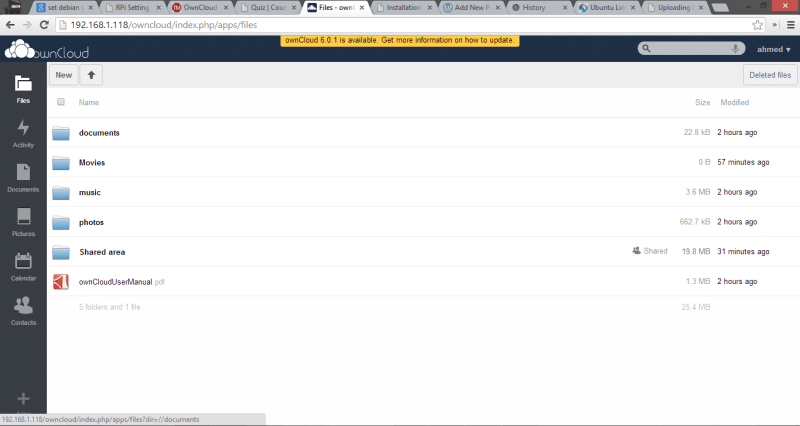
    Here are some screenshots of my local cloud !
    owncloud2

    Capture03031

  • A Linux bash script to download all pdf files from a page

    Are you trying to download multiple files from a webpage and bored from clicking and clicking ??

    I needed to download like a 100 PDF from a single web page , so I started to look for a bash script that automates the process and found this interesting article by Guillermo Garron that combines several useful programs into a nice script to download all links from a page using lynx command line web browser and wget downloader.

    First , install the the browser

    $ sudo apt-get install lynx

    Lynx has a nice feature that allows you to grab all links from a page

    $ lynx --dump http://mlg.eng.cam.ac.uk/pub/ >> ~/links.txt

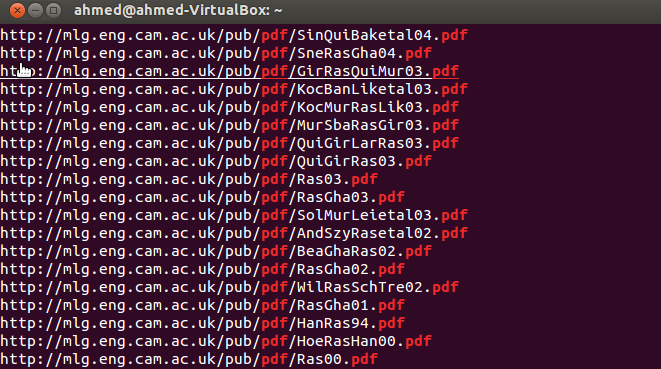
    The output will be like this 

    Image

    So we need to filter out the first numbering column and all non pdf links for the output to be nice and readable by wget

    $ lynx --dump //http://mlg.eng.cam.ac.uk/pub/  | awk '/http/{print $2}' | grep pdf  >> ~/links.txt

    Resulting in a clean input to wget 

    Image

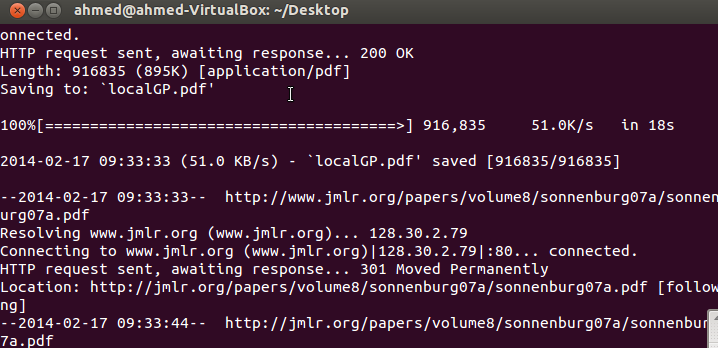
    and the last step is to pass this file into wget to download all the pdfs

    $ for i in $( cat ~/links.txt ); do wget $i; done

     voilà ! you get all the files downloaded 

    Image

  • OpenTLD Object tracking on Raspberry PI

    OpenTLD (Tracking-Learning-Detection ) is an object tracking algorithm originally developed in MATLAB by Zdenek Kalal, the novel feature of the algorithm is the decoupling between the tracking and the detection algorithms unlike many algorithms where the tracking depends on the detected features of the object. This decoupling allowed the OpenTLD to outperform many algorithms.

    You can find more info about the algorithm and Kalal here.

    TLD has been released under GPL v3.0 allowing the open source community to invest more efforts in the algorithm, Georg Nebehay released a complete C++ implementation of OpenTLD relying on the powerful OpenCV library and based solely on open source libraries.

    Find more info here and src code here.

    What’s cool about Georg’s implementation is using cmake (cross-platform make) as a build system for the project allowing compiling over windows and linux easily, so here’s what you have to do to get OpenTLD working on the Raspberry Pi

    • Install the dependencies
      •  OpenCV
      • CMake
      • libconfig++ (optional)
      • Qt4 (optional)

    $ sudo apt-get install libopencv-*

    $ sudo apt-get install cmake

    • Download the OpenTLD source code and unzip it .
    • Generate the native linux makefile

    $ cd $OPENTLD
    $ mkdir ../build
    $ cd ../build
    $ cmake ../$OPENTLD -DBUILD_QOPENTLD=ON -DUSE_SYSTEM_LIBS=OFF

    • Navigate with the terminal to the build directory

     $ make  (builds the project)
     $ make install (builds and installs the project)

    That’s it , you are good to go . You will find opentld executable in bin/

    $ ./bin/opentld

    Update [16/12/2013]

    Just thought of posting some performance benchmarks ..

    Tracking + learning : ~ 0.8 fps

    Tracking only (switched off learning) : ~ 1.5 fps