Category: Technical

  • How did I turn my old crappy Pentium 4 PC into a nice home network data cloud ?

    Do you have an old PC lying somewhere with a lot of dust all over it ? Do you want a local data cloud to sync all your files across your laptop, tablet, PCs ? 

    Then, I guess this tutorial will come in handy.

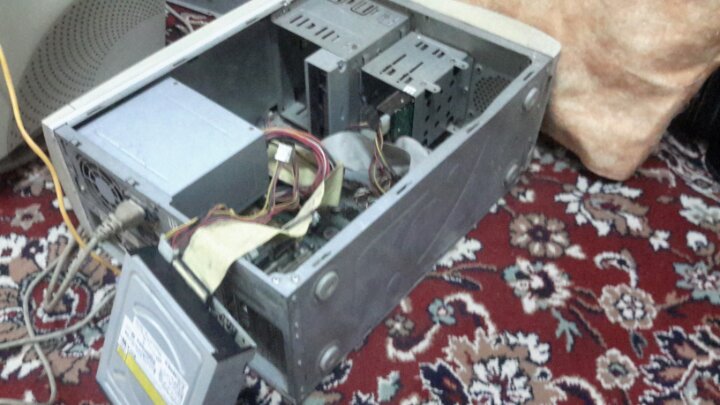
    – First step is to dust your machine off , when I first plugged in my machine it didn’t even boot except when I really cleaned it well but sadly one RAM stick died because of dust . Now I am stuck with only 256 MB of RAM on my P4 2.8 GHZ machine but that didn’t set me back !

    image

    Download, burn and install your favorite Linux distro  as ownclowd supports many distros, but note that this tutorial is debian-based, I am using debian wheezy 7.4 standard(no desktop)

    – Remember that we are dealing with a server now:

    • It’s important that when the machine restarts because of a power cut for example; it should always boot to your server OS without any external intervention because we will only use ssh and won’t connect any IO devices to the server machine (keyboard,mouse,monitor…etc.)  , also make sure to configure your BIOS settings (boot device, order..etc.) .
    • To save power disconnect any unneeded peripherals(for ex: I disconnected my Nvidia VGA card and DVD ROM ) , not sure if it will do much saving for this old machine but better than nothing.

    – Set a static IP to your local server , for a Debian server you can follow the following instructions from elinux which were originally written for the raspberry pi but the will work perfectly here:

    You only need to modify the file /etc/network/interfaces

    Before you do, backup the current version of the interfaces file, if there is already one present:

     pi@raspberry:sudo cp /etc/network/interfaces /etc/network/interfaces.sav

    You can edit the file with any text editor such as vi or vim.

    We need root privileges, so we use sudo:

     pi@raspberry:sudo vi /etc/network/interfaces

    In the interfaces file look for a line such as:

     iface eth0 inet dhcp

    This is to enable the DHCP client. You do not want this to work any more.

    Put a hash at the beginning of the line to disable it or delete it:

     #iface eth0 inet dhcp

    In the file you must insert the following lines:

     # The loopback interface
     auto lo
     iface lo inet loopback
     auto eth0
     iface eth0 inet static
     #your static IP
     address 192.168.1.118  
     #your gateway IP
     gateway 192.168.1.1
     netmask 255.255.255.0
     #your network address "family"
     network 192.168.1.0
     broadcast 192.168.1.255

    Only the address and netmask data are strictly required.

    If for example your LAN is configured to have IP adresses in the range x.x.x.1 to x.x.x.255, you will put x.x.x.0 in the network line.

    “address” is the IP you want the RPi will assume (in the proper range, as described above). pay attention not to use an IP already used by another device in your LAN or that can be assigned to a device by your router by DHCP (set the DHCP range of the router wisely in order to avoid potential overlaps).

    “netmask” will “always” be 255.255.255.0

    gateway is usually x.x.x.1 (your router IP or the one given by your ISP)

    You now need to restart the network:

     pi@raspberry:sudo /etc/init.d/networking restart

    – Install ownclowd using the following techcint great tutorial , I recommend you to fully read it to understand what you are doing but here is a cheat sheet of the commands 

    # apt-get install apache2 apache2-doc apache2-utils mysql-server mysql-client php5 php5-mysql php5-gd
    # mysql -u root -p
    mysql> create database cloud ; 
    Query OK, 1 row affected (0.00 sec)
    mysql> grant all on cloud.* to yourname@localhost identified by 'my_password'; 
    Query OK, 0 rows affected (0.00 sec)
    # wget http://download.owncloud.org/community/owncloud-6.0.0a.tar.bz2
    # cp owncloud-6.0.0a.tar.bz2 /var/www/		
    # tar -jxvf owncloud-6.0.0a.tar.bz2
    # rm -rf owncloud-6.0.0a.tar.bz2
    # chmod -R 777 owncloud/
    # a2enmod rewrite
    # a2enmod headers
    # nano /etc/apache2/sites-available/default

    Find

    AllowOverride None

    Change this to:

    AllowOverride All
    # service apache2 restart

    VOILA ! You should be up and running now using :  http://your-ip-address/owncloud

    Now , you should create the admin user  and remember to enter the mysql user and database to get it ready .

    Don’t go yet as there is a last step,   php is set to have a max upload of 2 MBs which is useless so you have to configure it a bit :

    Note: The order of the following steps is important! If you swap steps described below, the settings may fail.

    Go to the admin section in the ownCloud-WebUI and do the following:

    • Under “File handling” set the Maximum upload size to the desired value (e.g. 16GB)
    • Click the “save”-Button

    Open the php.ini – file

    • Under Debian or SUSE and their derivatives this file lies at /etc/php5/apache2/php.ini
    • On Windows, you can find this file within C:/Program Files (x86)/PHP/PHP.ini

    Do the following:

    • Set the following three parameters inside th php.ini to the same value as chosen inside the admin-section one step before:
    • upload_max_filesize = 16G (e.g., to stay consistent with the example value above)
    • post_max_size = 16G (e.g., to stay consistent with the example value above)
    • output_buffering = 16384 (e.g., to stay consistent with the example value above)

    whereas the “output_buffering” has to be given in MegaBytes but as a plain figure (without size-units as ‘M’ or ‘G’)

    These client configurations have been proven by testing maximum file sizes of 16 GB:

    • Linux 32 Bit: Ubuntu, Firefox => 16GB
    • Windows 8 64 Bit: Google Chrome => 8GB

    Here are some screenshots of my local cloud !

    owncloud2

    Capture03031

  • A Linux bash script to download all pdf files from a page

    Are you trying to download multiple files from a webpage and bored from clicking and clicking ??

    I needed to download like a 100 PDF from a single web page , so I started to look for a bash script that automates the process and found this interesting article by Guillermo Garron that combines several useful programs into a nice script to download all links from a page using lynx command line web browser and wget downloader.

    First , install the the browser

    $ sudo apt-get install lynx

    Lynx has a nice feature that allows you to grab all links from a page

    $ lynx --dump http://mlg.eng.cam.ac.uk/pub/ >> ~/links.txt

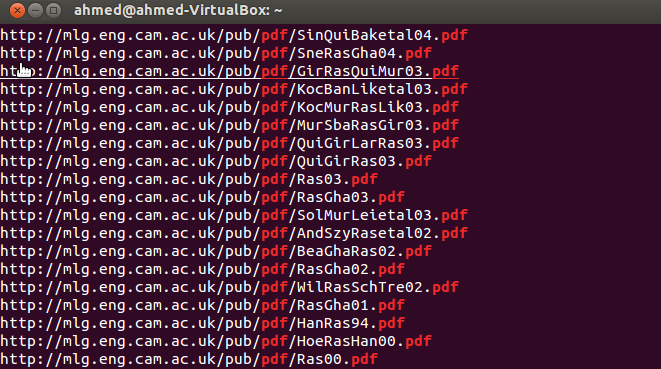
    The output will be like this 

    Image

    So we need to filter out the first numbering column and all non pdf links for the output to be nice and readable by wget

    $ lynx --dump //http://mlg.eng.cam.ac.uk/pub/  | awk '/http/{print $2}' | grep pdf  >> ~/links.txt

    Resulting in a clean input to wget 

    Image

    and the last step is to pass this file into wget to download all the pdfs

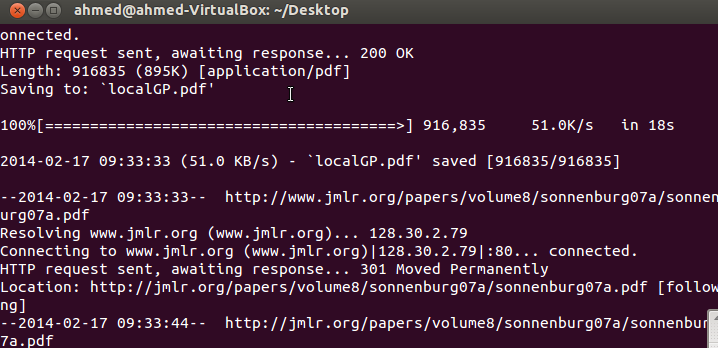
    $ for i in $( cat ~/links.txt ); do wget $i; done

     voilà ! you get all the files downloaded 

    Image

  • Quick notes about SRTP (Secure Real-time protocol)

    Here are some quick notes that I took while studying the SRTP from the standard document , they are not meant to be complete but rather a quick overview of the protocol.

    SRTP: Secure Real-time Transport Protocol
    is a profile of Real-time Transport protocol, a stream-cipher
    provides confidentiality, message authentication, message integrity, and replay attack protection.
    other goals are to have a small footprint, low bandwidth cost
    additional features to simplify key management is introduction of a single MK(Master Key) ; all security services derive their keys from the MK using a key derivation function
    note: reading the standard
    SRTP provides a framework for encryption and message authentication of RTP and RTCP streams(Section 3). SRTP defines a set of default cryptographic transforms (Sections 4 and 5),and it allows new transforms to be introduced in the future (Section 6). With appropriate key management (Sections 7 and 8), SRTP is secure (Sections 9) for unicast and multicast RTP applications (Section 11).
    SRTP Framework
    SRTP is defined as a profile of the RTP protocol; an extension of the Audio/Video profile. It can be visualized residing between RTP application and transport layer.
    SRTCP to RTCP resembles SRTP to RTP; providing same services, but with mandatory message authentication.
    1. SRTP Packet
    Payload size doesn’t change after encryption.
    MKI [Optional] (Master Key Identifier)
         – identifies the master key from which session keys are derived.
         – shall not identify the cryptographic context.
    Authentication tag [Recommended]
        – carries message authentication data
        – encryption shall be applied before authentication
       
    
            0                   1                   2                   3
          0 1 2 3 4 5 6 7 8 9 0 1 2 3 4 5 6 7 8 9 0 1 2 3 4 5 6 7 8 9 0 1
         +-+-+-+-+-+-+-+-+-+-+-+-+-+-+-+-+-+-+-+-+-+-+-+-+-+-+-+-+-+-+-+-+<+
         |V=2|P|X|  CC   |M|     PT      |       sequence number         | |
         +-+-+-+-+-+-+-+-+-+-+-+-+-+-+-+-+-+-+-+-+-+-+-+-+-+-+-+-+-+-+-+-+ |
         |                           timestamp                           | |
         +-+-+-+-+-+-+-+-+-+-+-+-+-+-+-+-+-+-+-+-+-+-+-+-+-+-+-+-+-+-+-+-+ |
         |           synchronization source (SSRC) identifier            | |
         +=+=+=+=+=+=+=+=+=+=+=+=+=+=+=+=+=+=+=+=+=+=+=+=+=+=+=+=+=+=+=+=+ |
         |            contributing source (CSRC) identifiers             | |
         |                               ....                            | |
         +-+-+-+-+-+-+-+-+-+-+-+-+-+-+-+-+-+-+-+-+-+-+-+-+-+-+-+-+-+-+-+-+ |
         |                   RTP extension (OPTIONAL)                    | |
       +>+-+-+-+-+-+-+-+-+-+-+-+-+-+-+-+-+-+-+-+-+-+-+-+-+-+-+-+-+-+-+-+-+ |
       | |                          payload  ...                         | |
       | |                               +-------------------------------+ |
       | |                               | RTP padding   | RTP pad count | |
       +>+-+-+-+-+-+-+-+-+-+-+-+-+-+-+-+-+-+-+-+-+-+-+-+-+-+-+-+-+-+-+-+-+<+
       | ~                     SRTP MKI (OPTIONAL)                       ~ |
       | +-+-+-+-+-+-+-+-+-+-+-+-+-+-+-+-+-+-+-+-+-+-+-+-+-+-+-+-+-+-+-+-+ |
       | :                 authentication tag (RECOMMENDED)              : |
       | +-+-+-+-+-+-+-+-+-+-+-+-+-+-+-+-+-+-+-+-+-+-+-+-+-+-+-+-+-+-+-+-+ |
       |                                                                   |
       +- Encrypted Portion*                      Authenticated Portion ---+
    2. SRTP Cryptographic context
         is the cryptographic state information required to be saved by the sender and the receiver (e.g: keys, encryption algorithms used), session keys are derived form master keys and used directly in the cryptographic transform
        the cryptographic context parameters can be transform-independent(independent of the particular encryption or authentication transform used), or transform-dependent
        a cryptographic context of a packet is defined by the triplet context identifier = < SSRC, network address, port number>
    3. SRTP Packet Processing
        @sender
        – determine the cryptographic context to use.
         determine index of packet (from ROC, RTP packet sequence number, cryptographic context sequence number)
        – determine master key and master salt , derive session keys and session salt from them.
         – encrypt the payload with the algorithm defined by the cryptographic context,
        – append the MKI if MKI indicator is set to 1
        – compute the authentication tag defined by the cryptographic context
        @receiver
        – find out the cryptographic context to use.
        – get packet index
        – if MKI indicator is set to 1 get MKI from packet else use previous index, determine master key and master salt , session keys and session salt.
        – authenticate
        – decrypt
        – update ROC and cryptographic context sequence number.
    4. Predefined Algorithms for SRTP
        
        for encryption
       The encryption transforms defined in SRTP map the SRTP packet index
       and secret key into a pseudo-random keystream segment.  Each
       keystream segment encrypts a single RTP packet.  The process of
       encrypting a packet consists of generating the keystream segment
       corresponding to the packet, and then bitwise exclusive-oring that
       keystream segment onto the payload of the RTP packet to produce the
       Encrypted Portion of the SRTP packet.  In case the payload size is
       not an integer multiple of n_b bits, the excess (least significant)
       bits of the keystream are simply discarded.  Decryption is done the
       same way, but swapping the roles of the plaintext and ciphertext.
        – AES-CTR
        – AES-f8
     
        for authentication
       We describe the process of computing authentication tags as follows.
       The sender computes the tag of M and appends it to the packet.  The
       SRTP receiver verifies a message/authentication tag pair by computing
       a new authentication tag over M using the selected algorithm and key,
       and then compares it to the tag associated with the received message.
       If the two tags are equal, then the message/tag pair is valid;
       otherwise, it is invalid and the error audit message "AUTHENTICATION
       FAILURE" MUST be returned.
        – HMAC-SHA1    
    5- An Example of an encryption process using AES-CTR
       Mainly, the encryption process is as simple as XORing the payload  
       with a keystream segment .
       The keystream segment SHALL be the concatenation of the 128-bit output
       blocks of the AES cipher in the encrypt direction, using key k = k_e,
       in which the block indices are in increasing order.  Symbolically,
       each keystream segment looks like
    
          E(k, IV) || E(k, IV + 1 mod 2^128) || E(k, IV + 2 mod 2^128) ...
    
       where the 128-bit integer value IV SHALL be defined by the SSRC, the
       SRTP packet index i, and the SRTP session salting key k_s, as below.
    
          IV = (k_s * 2^16) XOR (SSRC * 2^64) XOR (i * 2^16)
  • OpenTLD Object tracking on Raspberry PI

    OpenTLD (Tracking-Learning-Detection ) is an object tracking algorithm originally developed in MATLAB by Zdenek Kalal, the novel feature of the algorithm is the decoupling between the tracking and the detection algorithms unlike many algorithms where the tracking depends on the detected features of the object. This decoupling allowed the OpenTLD to outperform many algorithms.

    You can find more info about the algorithm and Kalal here.

    TLD has been released under GPL v3.0 allowing the open source community to invest more efforts in the algorithm, Georg Nebehay released a complete C++ implementation of OpenTLD relying on the powerful OpenCV library and based solely on open source libraries.

    Find more info here and src code here.

    What’s cool about Georg’s implementation is using cmake (cross-platform make) as a build system for the project allowing compiling over windows and linux easily, so here’s what you have to do to get OpenTLD working on the Raspberry Pi

    • Install the dependencies
      •  OpenCV
      • CMake
      • libconfig++ (optional)
      • Qt4 (optional)

    $ sudo apt-get install libopencv-*

    $ sudo apt-get install cmake

    • Download the OpenTLD source code and unzip it .
    • Generate the native linux makefile

    $ cd $OPENTLD
    $ mkdir ../build
    $ cd ../build
    $ cmake ../$OPENTLD -DBUILD_QOPENTLD=ON -DUSE_SYSTEM_LIBS=OFF

    • Navigate with the terminal to the build directory

     $ make  (builds the project)
     $ make install (builds and installs the project)

    That’s it , you are good to go . You will find opentld executable in bin/

    $ ./bin/opentld

    Update [16/12/2013]

    Just thought of posting some performance benchmarks ..

    Tracking + learning : ~ 0.8 fps

    Tracking only (switched off learning) : ~ 1.5 fps

  • Rooting and installing CWM on Samsung Galaxy S3 without Odin/Computer/USB connection

    Rooting and installing CWM on Samsung Galaxy S3 without Odin/Computer/USB connection

    Are you totally new to rooting Android phones ? Can’t fully understand the whole new terminology ? Finding Odin Confusing ?……

    Then this thread is for you !

    I am assuming you already did you research about rooting and you know all the risks involved .

    I am also assuming that you got stuck with some Odin errors like the Stuck at “Get PIT for Mapping” or any other issue , despite of this post I still recommend using Odin as it’s widely supported . Finally , I am not responsible for any damage that happens to your phone . This method worked for an S3 I9300 with Android JB 4.1.2. 

    Now after you have been lectured with the usual warnings and recommendations it’s time for action :

    FIRST STEP : Downloading and installing Farmaroot.apk

    Farmaroot is a tool that uses software workarounds to root the phone without having to flash a custom ROM.

    1 – Download Farmaroot-1.6.0

    2- Connect your phone to the PC and copy Farmaroot-1.6.0.apk to your sdcard .

    3 – Install Farmaroot (make sure you checked installation from untrusted source from the security settings) .

    4-  Run the app , choose “install Superuser”  option inside Framaraoot and Select any of the exploits that appears in the app and wait for some time(sam worked for me) .

    • If you get a “Success  … Superuser and su binary installed. You have to reboot your device” then you have successfully rooted your phone .

    5- you can ensure that your phone is rooted by downloading the root checker from the app store.


    SECOND STEP : Flashing the Clockworkmod recovery.

    1- Now you have your phone rooted you can simply install CWM using the ROM manager app from the play store which fully supports the i9300 . Run Rom manager and follow the steps to flash the CWM.

    2- Reboot your phone in recovery (by pressing Home + power + vol down buttons) and you will get the CWM recovery screen ..


    That’s it ! Congrats !


  • How to install Ubuntu 12.04 over Fedora 17 keeping Windows 7 dual boot

    I have spent a few days playing around with different boot scenarios to remove Fedora and install Ubuntu but keeping dual boot with Windows 7 intact and here is the juice of my experience 🙂

    * If you are booting from USB live disk make sure to disable UEFI from BIOS options and run in legacy mode (sometimes referred as CSM)

    Method 1

    1 – Use Disk Management from Windows  (Run -> diskmgmt.msc), find the Fedora partitions, delete them and format but this will delete GRUB and you will not be able to boot hence you need to restore MBR.

    2 – To restore the MBR using Ubuntu live CD you should simply install lilo

    sudo apt-get install lilo

    sudo lilo -M /dev/sda mbr

    3 – Then you can install Ubuntu normally alongside with windows using the installer which will be able to automatically detect  Windows 7 installation.

    This should be the perfect scenario but actually this is not what really happened to me during my trials,

    What happened to me is that I damaged the MBR by accident so I got the error

    BOOTMGR is missing.

    after rebooting the machine.

    Method 2

    So I plugged in the ubuntu live usb disk -> install and when asked where to install I chose something else then I chose the 2 Fedora partitions as the installation partitions and checked the option to format them

    /dev/sda1 -> /boot

    /dev/sda2 -> /

    Ubuntu installation automatically fixed MBR and installed GRUB and now I can happily dual boot Ubuntu 12.04 and Windows 7 🙂

    So I guess this is a second and an easier  method to install Ubuntu >= 12.04 over fedora just by using the live disk and choosing fedora partitions as Ubuntu installation partitions.

  • اخيرا …البشر ينتقلون للعيش على المريخ

    منذ القدم راود البشرية حلم التحليق إلى اﻷعلى لينتقل خارج حدود اﻷرض و يقوم بسبر أغوار الكون, قمنا باتخاذ أول خطوة على سطح القمر فى عام 1969 .

    و الان نحلم باتخاذ نفس الخطوة و لكن ………… على المريخ !

    Mars_One

    خلفية تاريخية

    محاولات البشر لاستكشاف المريخ قديمة , كانت أول محاولة قام بها السوفيت فى عام 1960 و لكن فشلت مرحلة الاطلاق و استمرت المحاولات حتى كانت أول محاولة ناجحة من نصيب مركبة مارينر 4 اﻷمريكية فى عام 1964 التى استطاعت تصوير سطح كوكب المريخ ﻷول مرة فى تاريخ البشرية ثم توالت الرحلات حتى استطاعت وكالة ناسا الفضائية انزال عربات يتم التحكم فيها من بعد على سطح المريخ أخرهم عربة كيروسيتى روفر التى استطاعت الهبوط بنجاح فى اغسطس 2012 .

    جدول توضيحى من ويكيدبيديا للرحلا الفضائية الى المريخ من 200 حتى اﻷن

    جدول توضيحى لمهام المريخ الاستكشافية منذ عام 2000 : المصدر ويكيبديا

    مارس وان

    في عام 2011 اجتمع الأعضاء المؤسسين لفريق مارس وان معا لوضع خطة استراتيجية لأخذ الإنسانية إلى المريخ. أسفرت تلك السنة الأولى الانتهاء عن  دراسة الجدوى، ودعوة خبراء من وكالات الفضاء وشركات الفضاء الخاصة في جميع أنحاء العالم و انشاء منظمة مارس وان الهولندية الغير هادفة للربح  .قام المؤسسون لمنظمة مارس وان بدراسات متعمقة مبنية على جلسات مع متخصصين فى مجال الفضاء وخطتهم تعتمد على تكنولوجيا متوفرة حاليا فى شركات الفضاء و معامل اﻷبحاث للقيام بالرحلة و توفير وسائل الاتصال مع اﻷرض و انشاء مستعمرات مستدامة تعتمد على الزراعة و الطاقة الشمسية بحلول عام 2023 .

    وتتكون الخطة من ارسال بعثات البضائع لاعداد مستعمرات قابلة للسكن و المعيشة ، يليه هبوط الإنسان.

    في السنوات المقبلة، سيتم إرسال بعثة تجريبية، أقمار  الاتصالات، عربتان روفرز وعدة بعثات للبضائع إلى المريخ. وستكون مهمة  هذه البعثات إنشاء البؤرة الاستيطانية حيث سيعيش الطاقم  و سيأخد تصميم المهمة فى عين الاعتبار التوسع في المستعمرة  حيث يصل طاقم جديد كل سنتين. بدأ البحث عن رواد  .الفضاء في ابريل 2013. و قام أكثر من 78،000 شخص بالتسجيل لبرنامج الاختيار فى غضون أسبوعين من إطلاقه

    الجدول الزمنى

    2013
    • اختيار 40 رائد فضاء
    • البدء بالتدريب عن طريق محاكاة المستوطنة المريخية
    2016
    • اطلاق المهمة التجريبية و قمر الاتصالات
    2018
    • اطلاق مهمة عربات روفر للاستطلاع و تهيئة منطقة مناسبة لهبوط الامدادات و الوسائل المعيشية
    2021
    • جاهزية القاعدة المريخية اﻷولى التى تتكون من 6 وحدات اعاشة و عربتان روفر للاستطلاع
    2022
    • انطلاق رحلة الطاقم اﻷول
    2023
    • وصول الطاقم البشرى اﻷول المكون من رجلين و امرأتين إلى المريخ !
    2025
    • وصول الطاقم الثانى

    marsoneinfographicskopi

    تأمل الشركة الهولندية أن الانسان سيكون قادرا على العيش على سطح المريخ بحلول عام 2023 …فهل نفعلها ؟؟؟

    منظمة مارس وان Mars One- 

    عن الفريق- 

    الرؤية و المهمة- 

  • Have You Heard about the Li-Fi ?

    Many of us know the Wi-Fi, it’s the way that our laptops, tablets and smartphones communicate with each other and connect to the internet at our home. But have you heard about the Li-Fi ?

    In this interesting TED talk , Harald Haas raises an interesting question :

    What if every light bulb in the world could also transmit data?

    Li-Fi technology depends on tx of data using LED light bulbs. Haas describes it as :

    At the heart of this technology is a new generation of high-brightness LEDs. Very simply, if the LED is on, you transmit a digital 1, if it’s off you transmit a 0. They can be switched on and off very quickly, which gives nice opportunities for transmitting data

    The new emerging technology has many advantages like using a free bandwidth, higher security as light doesn’t penetrate walls, high data rates (claimed to reach 3 Gbps)  and is expected to be cheaper and more efficient than Wi-Fi but on the other hand you need a direct line of sight with the transmitter and even with a direct line of sight the receiver is susceptible are to interference with other light sources like the sun and normal light bulbs .

  • Building android-4.0.4 IceCreamSandwich on Pandaboard/Pandaboard ES

    This is the 2nd post about building Android for pandaboard. I quote from the previous post

    Google maintainers advise to always repo sync the master branch for panda claiming it’s the most stable , but in my opinion they should focus on stabilizing tags. Tags should represent a stable snapshot of he source tree to build and run . That’s what a tag means in Software Engineering anyway !

    This post is a translated version of the Japanese post on blog.sola-dolphin-1.net reposted under permission of the main author  that describes how to build Android JB tag android-4.0.4_r1.2 for pandaboard, of course some patching is required to get it work, you can download all the patches required from this mirror or follow the steps to get them one by one from the main mirror.

    android-4.0.4

    IMPORTANT: To compile ICS you need to be using gcc 4.4 , so you may downgrade your gcc version or just installing gcc/gcc++ 4.4 and specifying them while making.

    $ sudo apt-get install gcc-4.4 gcc-4.4-multilib g++-4.4 g++-4.4-multilib


    Then, override make’s default variables with

    $ make CC=gcc-4.4 CXX=g++-4.4 -j4

    – prepare the directory

    $ mkdir ~/panda_work
    $ export PANDA_WORK=~/panda_work
    $ mkdir ~/panda_work/android
    $ export ANDROID_ROOT=~/panda_work/android

    – init the repo

    $ cd $ANDROID_ROOT
    $ repo init -u https://android.googlesource.com/platform/manifest -b android-4.2.2_r1
    $ repo sync

    notes:

    1. to save time you can use an old tree and repo init inside it’s dir , then sync will grab only the differences
    2. in case repo sync hangs use repo sync -j1 to disable multi threading also check repo sync -h for other options

    – get the gpu user space binaries

    $ wget https://dl.google.com/dl/android/aosp/imgtec-panda-20120430-67545da7.tgz
    $ tar zxvf imgtec-panda-20120430-67545da7.tgz
    $ ./extract-imgtec-panda.sh

    – apply the patches

    $ wget http://android-development-environment.googlecode.com/files/panda.ics.patch.tar.bz2
    $ tar jxvf panda.ics.patch.tar.bz2
    $ cd device/ti/panda 
    $ git apply panda.ics.patch/0001-merge-master-to-device-ti-panda.patch # merges the contents of master branch into /device/ti/panda
    $ cd ..
    $ tar jxvf panda.ics.patch/hardware_ti_wlan.tar.bz2 -C hardware/ti/ # merges the contents of master branch
    $ tar jxvf panda.ics.patch/hardware_ti_wpan.tar.bz2 -C hardware/ti/ # merges the contents of master branch
    $ git apply panda.ics.patch/0003-Change-ALOG-to-LOG.patch # fixes a bug
    $ git apply panda.ics.patch/0004-enable-wifi.patch # merges the contents of master branch to enable wifi
    $ git apply panda.ics.patch/0005-change-console-permission.patch # root permssion to console

    – add the script of flashing or you can use fastboot instead , but note that this script will create an extra partition (/media)

    $ git apply panda.ics.patch/0008-add-mksdcard_pandaboard.sh.patch

    – build the tree

    $ cd $ANDROID_ROOT
    $ source build/envsetup.sh
    $ lunch full_panda-userdebug
    $ make CC=gcc-4.4 CXX=g++-4.4 -j4

    – format and flash from a ubuntu machine, /dev/sdx is the the sdcard device

    $ LANG=C sudo ./mksdcard_pandaboard.sh /dev/sdX $ANDROID_ROOT

    kernel

    – prepare the environment

    $ export ARCH=arm
    $ export CROSS_COMPILE=$ANDROID_ROOT/prebuilt/linux-x86/toolchain/arm-eabi-4.4.3/bin/arm-eabi-

    – clone the repo

    $ cd $PANDA_WORK
    $ git clone https://android.googlesource.com/kernel/omap.git kernel
    $ cd kernel
    $ git checkout -b android-omap-panda-3.0 origin/android-omap-panda-3.0
    $ git checkout 52f476403350050beb0dff135a55c06c9e7a82a9

    – build

    $ make panda_defconfig
    $ make -j4
    $ cp -a arch/arm/boot/zImage $ANDROID_ROOT/device/ti/panda/kernel

    note: though bootloader and xloader images are provided within device/ti/panda dir , you can build them from source using the following instructions

    xloader

    – build xloader

    $ cd $PANDA_WORK
    $ git clone git://git.omapzoom.org/repo/x-loader.git
    $ cd x-loader
    $ git checkout -b omap4_dev origin/omap4_dev
    $ make omap4430panda_config
    $ make ift
    $ cp -a MLO $ANDROID_ROOT/device/ti/panda/xloader.bin

    bootlader(uboot)

    – clone the repo

    $ cd $PANDA_WORK
    $ git clone git://git.omapzoom.org/repo/u-boot.git
    $ cd u-boot
    $ git checkout -b omap4_dev origin/omap4_dev

    – change the boot parameters

    $ wget http://android-development-environment.googlecode.com/files/0001-change-bootarges.patch
    $ git apply 0001-change-bootarges.patch

    – build

    $ make omap4430panda_config
    $ make
    $ cp -a u-boot.bin $ANDROID_ROOT/device/ti/panda/bootloader.bin
  • Building android-4.2.2 JellyBean on Pandaboard/Pandaboard ES

    Google maintainers advise to always repo sync the master branch for panda claiming it’s the most stable , but in my opinion they should focus on stabilizing tags. Tags should represent a stable snapshot of he source tree to build and run . That’s what a tag means in Software Engineering anyway !

    This post is a translated version of the Japanese post on blog.sola-dolphin-1.net reposted under permission of the main author  that describes how to build Android JB tag android-4.2.2_r1 for pandaboard, of course some patching is required to get it work, you can download all the patches required from this mirror or follow the steps to get them one by one from the main mirror.

    android-4.2.2

    – prepare the directory

    $ mkdir ~/panda_work
    $ export PANDA_WORK=~/panda_work
    $ mkdir ~/panda_work/android
    $ export ANDROID_ROOT=~/panda_work/android

    – init the repo

    $ cd $ANDROID_ROOT
    $ repo init -u https://android.googlesource.com/platform/manifest -b android-4.2.2_r1
    $ repo sync

    notes:

    1. to save time you can use an old tree and repo init inside it’s dir , then sync will grab only the differences
    2. in case repo sync hangs use repo sync -j1 to disable multi threading also check repo sync -h for other options

    – get the gpu user space binaries

    $ wget https://dl.google.com/dl/android/aosp/imgtec-panda-20120807-c4e99e89.tgz
    $ tar zxvf imgtec-panda-20120807-c4e99e89.tgz
    $ ./extract-imgtec-panda.sh

    – apply the patches

    $ cd $ANDROID_ROOT/build/
    $ wget http://sola-dolphin-1.net/data/Panda/0001-panda-jb4.2_build.patch
    $ git apply 0001-panda-jb4.2_build.patch
    $ cd $ANDROID_ROOT/device/ti/panda/
    $ wget http://sola-dolphin-1.net/data/Panda/0001-panda-jb4.2_device-ti-panda.patch
    $ git apply 0001-panda-jb4.2_device-ti-panda.patch
    $ cd $ANDROID_ROOT/hardware/ti/omap4xxx/
    $ wget http://sola-dolphin-1.net/data/Panda/0001-panda-jb4.2_hardware-ti-omap4xxx.patch
    $ git apply 0001-panda-jb4.2_hardware-ti-omap4xxx.patch
    $ cd $ANDROID_ROOT/hardware/ti/wpan/
    $ wget http://sola-dolphin-1.net/data/Panda/0001-panda-jb4.2_hardware-ti-wpan.patch
    $ git apply 0001-panda-jb4.2_hardware-ti-wpan.patch

    – you can either use fastboot to format and flash the images or use this script instead

    $ cd $ANDROID_ROOT
    $ wget http://sola-dolphin-1.net/data/Panda/0001-add-mksdcard_pandaboard.sh.patch
    $ git apply 0001-add-mksdcard_pandaboard.sh.patch

    – build the tree

    $ cd $ANDROID_ROOT
    $ source build/envsetup.sh
    $ lunch full_panda-userdebug
    $ make -j4

    – format and flash from a ubuntu machine, /dev/sdx is the the sdcard device

    $ LANG=C sudo ./mksdcard_pandaboard.sh /dev/sdX $ANDROID_ROOT

    kernel

    – prepare the environment

    $ export ARCH=arm
    $ export CROSS_COMPILE=$ANDROID_ROOT/prebuilts/gcc/linux-x86/arm/arm-eabi-4.6/bin/arm-eabi-

    – clone the repo

    $ cd $PANDA_WORK
    $ git clone https://android.googlesource.com/kernel/omap.git kernel
    $ cd kernel
    $ git checkout -b android-omap-panda-3.0 origin/android-omap-panda-3.0

    – build with panda config

    $ make panda_defconfig
    $ make
    $ cp -a arch/arm/boot/zImage $ANDROID_ROOT/device/ti/panda/kernel

    note: though bootloader and xloader images are provided within device/ti/panda dir , you can build them from source using the following instructions

    xloader

    – build xloader

    $ cd $PANDA_WORK
    $ git clone git://git.omapzoom.org/repo/x-loader.git
    $ cd x-loader
    $ git checkout -b omap4_dev origin/omap4_dev
    $ make omap4430panda_config
    $ make ift
    $ cp -a MLO $ANDROID_ROOT/device/ti/panda/xloader.bin

    bootlader(uboot)

    – clone the repo

    $ cd $PANDA_WORK
    $ git clone git://git.omapzoom.org/repo/u-boot.git
    $ cd u-boot
    $ git checkout -b omap4_dev origin/omap4_dev

    – change the boot parameters

    $ wget http://android-development-environment.googlecode.com/files/0001-change-bootarges.patch
    $ git apply 0001-change-bootarges.patch

    – build

    $ make omap4430panda_config
    $ make
    $ cp -a u-boot.bin $ANDROID_ROOT/device/ti/panda/bootloader.bin